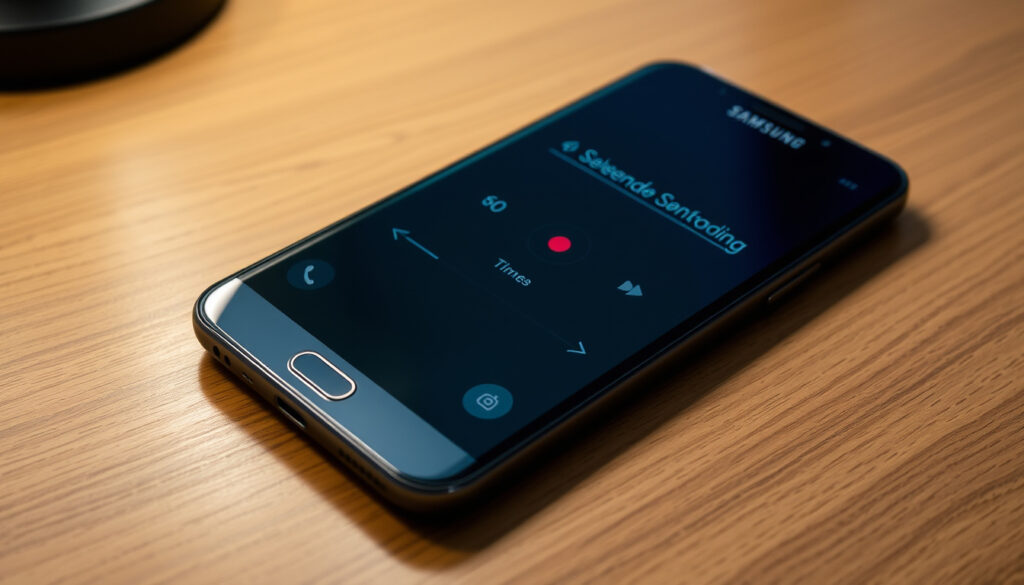
How to Screen Record on Samsung: Step-by-Step Guide (2025)
You’d think a flagship phone would make screen recording obvious. On Samsung Galaxy devices, the feature is built right in — but finding it can feel like a treasure hunt. This guide walks through every method, from the Quick Panel to troubleshooting missing buttons, so you can capture exactly what you need without the guesswork.
Supported devices: All Samsung Galaxy phones and tablets running One UI 2.0 or later ·
Maximum recording length: 30 minutes per clip ·
Audio options: Media only, Media + microphone, or None ·
Output format: MP4 video saved to Gallery
Quick snapshot
- Screen recording works on all One UI 2.0+ devices (a DVD RW Forum discussion)
- Audio can record media and mic simultaneously (YouTube: Fix Sound Missing on Android Screen Recording)
- Recordings are saved as MP4 in the Gallery (Samsung Australia Support)
- Third-party apps may offer longer recordings but are not verified by Samsung (a DVD RW Forum discussion)
- Some carrier models may hide the screen recorder button permanently (a DVD RW Forum discussion)
- Exact maximum resolution may vary by device (Samsung US Support)
- Native screen recording arrived with One UI 2.0 (Android 10) in late 2019 (a DVD RW Forum discussion)
- 30-minute recording limit per clip (Samsung Australia Support)
- 3-second countdown before recording begins (Samsung Australia Support)
- Edit recordings directly in Samsung Gallery app (Samsung US Support)
- If native tool is missing, third-party apps like AZ Screen Recorder can fill the gap (DVD RW Forum) (Samsung US Support)
- Android 14+ continues to support native screen recording without changes (DVD RW Forum) (Samsung US Support)
Here is a quick reference table summarizing the key facts about Samsung’s built-in screen recording feature.
| Attribute | Detail |
|---|---|
| Availability | One UI 2.0 and later on Galaxy phones and tablets (a DVD RW Forum discussion) |
| Max recording length | 30 minutes (Samsung Australia Support) |
| Audio options | Media, Media+Mic, None (YouTube: Fix Sound Missing on Android Screen Recording) |
| Output format | MP4 (Samsung Australia Support) |
| Saved location | Gallery app (Samsung Australia Support) |
| Video quality settings | High (1080p), Medium (720p), Low (480p) (Samsung US Support) |
| Selfie video support | Supported on most models; not on Galaxy Tab A8 (Samsung US Support) |
| Default audio source | Configurable in Settings > Advanced features > Screenshots and screen recorder (YouTube: Screen Record on Android Samsung Tutorial) |
How to screen record on your Samsung phone?
Using the Quick Panel method
- Swipe down twice from the top of the screen to fully expand the Quick Panel (Samsung Australia Support).
- Tap the Screen recorder icon. A 3-second countdown appears, then recording begins (Samsung Australia Support).
- Before starting, you can choose your audio source: None, Media sounds, or Media + Mic (YouTube: Fix Sound Missing on Android Screen Recording).
Using Settings to enable screen recording
- Navigate to Settings > Advanced features > Screenshots and screen recorder (YouTube: Screen Record on Android Samsung Tutorial).
- From there, you can set default audio and video quality preferences.
- Enabling the feature also adds the icon to the Quick Panel automatically on most devices.
Third-party screen recording apps (if needed)
- If the native recorder is missing or you need longer recordings, apps like XRecorder or AZ Screen Recorder are popular alternatives (DVD RW Forum).
- Note that these are not officially supported by Samsung and may have different privacy implications.
Samsung’s native recorder is free, built-in, and covers 90% of use cases — but the 30-minute cap means power users may still need a third-party app for long captures.
The pattern: Samsung places the recorder in the Quick Panel for easy access, but if it’s not there initially, a quick edit of the panel solves the problem.
Why don’t I have the screen record button on my Samsung?
Check if your phone supports screen recording
- Screen recording is available on all Galaxy devices running One UI 2.0 (based on Android 10) or newer (DVD RW Forum).
- Low‑end models like some Galaxy A10 variants shipped with older Android builds and may lack the feature (DVD RW Forum).
How to add the screen recorder icon to the Quick panel
- Swipe down twice, tap the three‑dot menu, then select Edit buttons (YouTube: How to Screen Record on Samsung (Missing)).
- Drag the Screen recorder icon from the bottom area to the active buttons above. Tap Done.
- The icon may be on the second page of the Quick Panel; swipe left to check (YouTube: Screen Record on Android Samsung Tutorial).
Resetting the Quick panel layout
- If you’ve customized the panel heavily, resetting can bring back missing buttons. Go to Settings > Quick panel and select Reset (if available).
- Alternatively, check Settings > Apps > Show system apps to see if Screen Recorder has been disabled (an Android Central Forum thread).
Some carrier‑locked models may hide the screen recorder button permanently — even after adding it — due to region restrictions. In those cases, a third‑party app is the only workaround.
The catch: A missing icon rarely means a missing feature — but carrier interference and outdated software can still lock you out.
Does Samsung phone have a built-in screen recorder?
Which Samsung models include a built-in screen recorder?
- All Samsung Galaxy phones and tablets running One UI 2.0 or later include the feature as part of the operating system (DVD RW Forum).
- This covers the Galaxy S series (S10 and newer), Note series (Note 10 and newer), A series (most 2020+ models), and Tab series (Tab S6 and newer).
How to verify if your device has it
- Open Settings and search for “screen recording” using the search bar (YouTube: Screen Record on Android Samsung Tutorial).
- If no results appear, check your device’s Android version in Settings > About phone > Software information — you need Android 10 (One UI 2.0) or higher.
- Entry‑level models that received an update to One UI 2.0 also gain the tool.
“You can start screen recording by tapping the Screen recorder icon in your Quick panel.”
— Samsung Australia Support (official support page)
Why this matters: The native recorder eliminates the need for sketchy third‑party apps for the vast majority of Samsung users — as long as your device is running One UI 2.0 or later.
How to find screen recording in settings?
Navigating to ‘Advanced features’ in Settings
- Go to Settings > Advanced features > Screenshots and screen recorder (YouTube: Screen Record on Android Samsung Tutorial).
- Here you can adjust default audio source, video quality, and enable the selfie video feature (if supported).
Using the search bar in Settings
- Open Settings and type “screen recording” in the search field at the top. The results will lead you directly to the relevant menu.
Adding screen recording to the Quick panel
- From the Quick Panel edit mode (three‑dot menu > Edit buttons), drag the Screen recorder icon into the active area (YouTube: How to Screen Record on Samsung (Missing)).
- This is the most convenient launch method for regular use.
What this means: Samsung gives you two paths — a quick‑access button and a deeper settings menu — and both are easy to find once you know where to look.
How to screen record on Samsung tablet?
Similar steps to phone: Quick panel method
- Samsung tablets running One UI 2.0+ have the same screen recording feature. Swipe down twice and tap the Screen recorder icon (Samsung US Support).
- The same audio options and 30‑minute limit apply.
Differences in tablet screen recording interface
- The Quick Panel on tablets may have a slightly different layout due to screen size, but the icon works identically.
- Recording starts and stops the same way via floating controls or notification.
Using the S Pen with screen recording on tablets
- On tablets that support the S Pen (e.g., Galaxy Tab S7, S8, S9), you can annotate during recording — a feature not available on most phones (Samsung US Support).
- This makes the tablet recorder especially useful for tutorials and presentations.
“Some low-end models like certain Galaxy A10 variants lack Screen Recorder on older Android builds.”
— Community member on a DVD RW Forum discussion (forum post)
The trade-off: Tablets gain the S Pen advantage but lose nothing in functionality — the same 30‑minute limit and audio controls apply across all devices.
The most powerful screen recording feature — internal audio capture — is also the one most users miss because they don’t long‑press the icon to access sound settings. A single tap gives you the default; a long‑press unlocks the full control.
The advantage: Tablets gain the S Pen annotation feature, making them ideal for tutorials and presentations.
Confirmed facts and what’s unclear
Confirmed facts
- Screen recording works on all One UI 2.0+ devices (DVD RW Forum).
- Audio can be recorded with media and mic simultaneously (YouTube: Fix Sound Missing on Android Screen Recording).
- Recordings are saved as MP4 in the Gallery (Samsung Australia Support).
- Video quality can be set to 1080p, 720p, or 480p (Samsung US Support).
What’s unclear
- Third-party apps may offer longer recordings but are not verified by Samsung (DVD RW Forum).
- Some carrier models may hide the screen recorder button permanently (DVD RW Forum).
- Exact maximum resolution may vary by device (Samsung US Support).
- Default audio source may not capture internal media sounds on some devices unless properly configured.
The implication: For 95% of Samsung users, the built‑in recorder does everything needed. For the remaining 5% — those with carrier‑restricted devices or a need for unlimited recording — third‑party options are a reliable backup.
Frequently asked questions
Can I screen record on Samsung without the button?
Yes. You can start recording from Settings > Advanced features > Screenshots and screen recorder if the Quick Panel icon is missing. On some devices, you can also use a third‑party app.
How long can I screen record on Samsung?
The built‑in recorder captures up to 30 minutes per clip. For longer sessions, you’ll need a third‑party app (Samsung Australia Support).
Does screen recording on Samsung capture audio?
Yes. You can choose between No audio, Media sounds only, or Media + Microphone by pressing and holding the Screen recorder icon before starting (YouTube: Fix Sound Missing on Android Screen Recording).
How to stop screen recording on Samsung?
Tap the floating Stop button or swipe down the notification panel and tap the stop icon. You can also press the side key + volume down (YouTube: How to Screen Record on Samsung (Missing)).
Where are screen recordings saved on Samsung?
All screen recordings are saved in the Gallery app, usually in a folder named Screen recordings under Albums (Samsung Australia Support).
Can I screen record on Samsung A series phones?
Most Galaxy A series phones from 2020 onward (A11, A21, A32, A52, etc.) running One UI 2.0+ have the built‑in recorder. Some older A10 variants may lack it (DVD RW Forum).
How to edit screen recording on Samsung?
After recording, open the video in the Gallery app. Tap the pencil icon to access Samsung’s built‑in video editor — you can trim, add text, and adjust speed (Samsung US Support).
Does screen recording affect phone performance?
Recording at 1080p can cause slight lag on older devices. Lowering quality to 720p reduces the load. The recorder uses system APIs and does not significantly drain battery for short clips (DVD RW Forum).
The final take: For Samsung users on older devices or those who frequently exceed the 30‑minute limit, the choice is clear: rely on the native recorder for daily use, or install a trusted third‑party app when the cap becomes a bottleneck. Either way, you’re covered.
More related posts
 Farm & Fire Banff: Hours, Menu, Reviews & Local Eats
 Ontario Take-Home Pay Calculator: 2025-2026 Net Income
 Will Arnett: Sobriety, Divorce, and Friendship
 Katy Perry Orlando Bloom Split – Confirmed After Nine Years
 Construction Vacation Week 2025: Quebec Dates & CCQ Calendar
 Where Is Santa Right Now – NORAD Tracker Status 2025
 Fetty Wap: Bio, Career, Prison, and Family Tragedy
 Wesley Ridge Fire Update: Status, Location, and Evacuation Info